Shopify Review App Setup Guide: From Installation to First Review
Installing a Shopify review app is only the first step. Learn how to configure, test, and launch your review app correctly so it produces results from day one.
Quick answer
Set up a Shopify review app by installing and authenticating it in your Shopify admin, configuring the review request trigger and timing delay, writing templates for your customer segments, setting up review destination links, and running end-to-end tests before enabling for all customers.
Choosing and installing your Shopify review app
Before installing any Shopify review app, evaluate three compliance-critical characteristics. First, verify the app does not include review gating — satisfaction pre-screening before directing customers to review platforms. Second, verify the app's Shopify integration reliability through its app store review history. Third, verify the pricing at your current and projected order volume so the subscription cost does not create an unpleasant surprise as your store grows. After selecting an app, install it through the Shopify App Store by clicking 'Add app' and completing the authentication flow that grants the app permissions to read order data. Most review apps request access to read orders, customers, and products — these are the minimum permissions required for review request functionality. During installation, verify you understand what permissions you are granting and why each is needed. After installation, navigate to the app's dashboard and verify that your recent Shopify orders are visible in the order list within a few minutes of installation — this confirms the integration is functioning correctly.
Configuring your review app settings before writing any templates
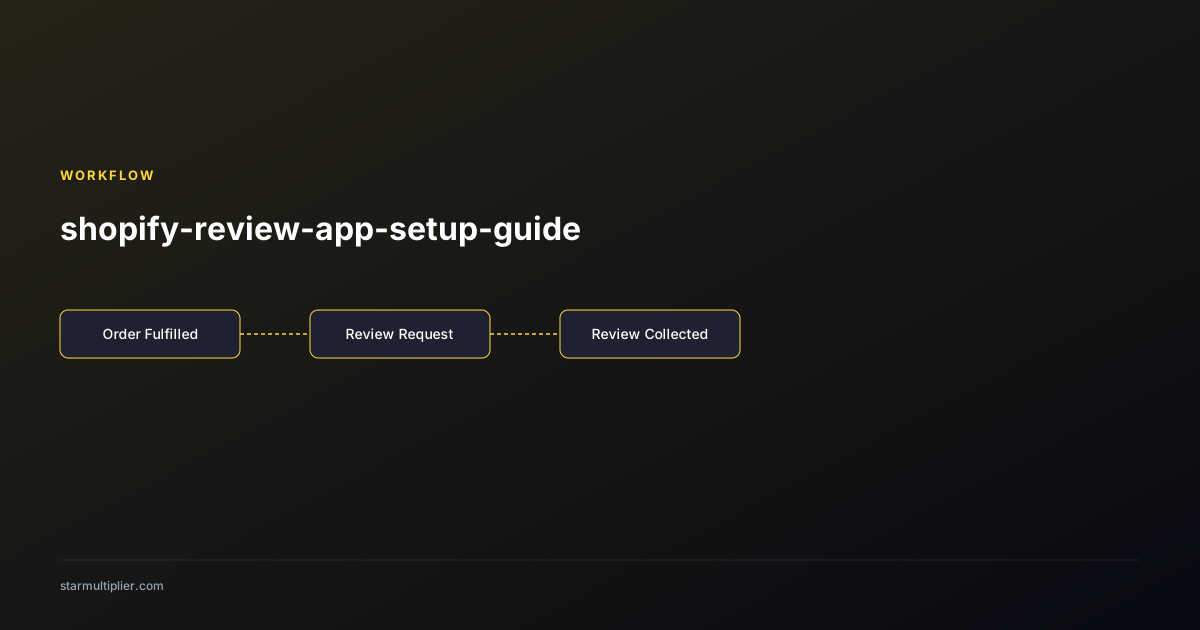
Before writing templates, complete all workflow configuration settings that will apply to all templates. Set the trigger event to the order status change that most accurately represents delivery in your fulfillment workflow. For most Shopify stores that use standard shipping, this is the 'Fulfilled' status change. Set the timing delay from fulfillment to review request: 7 days is the minimum recommended delay for domestic orders, with 10 to 14 days recommended for international orders. Configure the review destination link: for on-site Shopify product reviews, most apps generate this link automatically from the product data. For Google Business Profile, add your Google review link to the app's destination settings. Configure follow-up reminder timing at 5 to 7 days after the initial request. Configure suppression rules: the app should suppress follow-ups for customers who clicked the review link, submitted a review, opted out of review communications, or had an order returned. Verify each suppression rule is enabled before proceeding to template creation.
Writing templates that produce review responses
Most Shopify review apps include built-in template editors that provide a starting template you can customize. The default templates included in review apps are functional but generic — they will produce some reviews but typically underperform compared to templates customized for your specific brand voice and customer segments. Customize the default template with these high-impact changes. Replace the generic subject line with one that includes the customer's name personalization token and a product name reference. Replace the generic opening with a greeting that uses the customer's name and references the specific product purchased. Add an honest feedback invitation that explicitly welcomes all responses, not just positive ones. Add a direct contact option for customers who had any issue with their order, with a specific email address rather than a generic 'contact us.' Review the footer to ensure the unsubscribe link is functional and prominently placed. Save the customized version and preview it in the app's preview tool before creating any additional template variants.
Setting up customer segments in your Shopify review app
Most Shopify review apps support creating multiple templates assigned to different customer segments, with the app routing each customer to the appropriate template based on order and customer attributes. Create at minimum a first-time buyer template and a repeat customer template. In the app's segmentation settings, define the first-time buyer segment as customers with a first-order count equal to 1 (typically derived from Shopify's customer order count field). Define the repeat customer segment as customers with more than 1 prior order. Assign the first-time buyer template to the first-time buyer segment and the repeat customer template to the repeat customer segment. Verify the segment definitions are working correctly by checking 5 recent orders — 2 or 3 that should be classified as first-time buyers and 2 or 3 that should be classified as repeat customers — and confirming each is assigned to the correct template in the app's order dashboard. A segmentation error at this stage would cause all customers to receive the wrong template, producing suboptimal personalization for a large portion of your review outreach.
Testing your Shopify review app before going live
Testing your Shopify review app before enabling it for all customers requires placing real test orders that move through your fulfillment workflow. Create a test customer account using an email address you control. Place a test order for at least one product (use a $0 price or a test payment method if your platform supports it). Fulfill the test order as you would a real order, including marking it as fulfilled and adding tracking information if applicable. Wait for the configured timing delay to pass and verify that the review request email is sent to your test email address. Open the email from an email client (not a webmail preview) and check: personalization fields populated correctly, product image and name are correct, the review destination link is functional, the unsubscribe link is functional, and the email renders correctly on mobile. Click the review destination link and verify it reaches the correct review form without requiring login. Submit a test review and verify it appears on the correct product page. For the follow-up reminder, allow the reminder timing to pass without clicking the initial link and verify the reminder sends. Then click the initial link and verify the reminder is suppressed.
Want to see where your review workflow is leaking opportunities? Start with a StarMultiplier review audit.
Monitoring the first 30 days after launch
The first 30 days after launching your Shopify review app require more active monitoring than the ongoing cadence you will establish afterward, because configuration problems are most likely to surface in the initial period before the workflow has processed a large enough volume to make problems statistically obvious. Check the app dashboard daily for the first two weeks to verify: new fulfilled orders are appearing in the queue, orders are being assigned to the correct customer segments, emails are sending at the correct timing intervals. At the end of week two, review the first performance data: email open rate (expected range 20 to 35 percent for review requests), click-through rate (expected range 15 to 30 percent of opens), and any completed reviews. If no reviews have been received by the end of week three, investigate whether the timing delay means reviews are still in the collection window rather than assuming the workflow has failed — at 10 days post-fulfillment, it may take 3 to 4 weeks after launch before the first review request sequence has completed. At the end of the first month, produce your first performance summary and compare against baseline targets to confirm the setup is producing results.
Managing Shopify review app updates without breaking your configuration
Shopify review app updates — which may be installed automatically by the app or triggered by your Shopify admin — can occasionally reset configuration settings or change default behaviors that you have customized. Build a configuration protection practice: before any known major app update, document your current configuration in the operations playbook and export any data that could be affected. After any app update (whether or not you knew it was coming), run through the relevant portions of your configuration checklist to verify key settings are intact. The settings most commonly affected by app updates are: suppression rule configurations (check that all suppression rules are still enabled and correctly defined), template assignments (verify that the correct template is assigned to each customer segment), and review destination links (verify that destination URLs have not been changed or reset to defaults). A 15-minute post-update configuration check prevents the type of silent configuration error where a setting is quietly reset to a default by an app update and produces weeks of suboptimal review collection before being detected.
Scaling your Shopify review app configuration for growing businesses
A Shopify review app configuration that handles 100 orders per month correctly may need modification to maintain performance at 500 or 1,000 orders per month. Scaling challenges arise in several areas. Send volume: verify that your review app's pricing plan accommodates your current and projected order volume — most apps price by send volume and silently throttle or stop sends when volume exceeds the plan limit. Template complexity: a small number of templates with clear segment logic scales better than many overlapping templates that require complex priority logic to resolve conflicts. Reporting: the native analytics in your review app may become insufficient at higher order volumes where product-level and segment-level breakdowns are needed to identify optimization opportunities that aggregate metrics hide. Integration reliability: some Shopify integrations experience latency or reliability issues at high order volume that are not apparent at lower volumes — test integration reliability by monitoring the lag between order fulfillment and order appearance in the review app at your peak volume periods.
Evaluating whether to switch Shopify review apps after initial setup
After 6 to 12 months of operating a Shopify review app, evaluate whether the app is meeting your evolving review operations needs or whether switching to an alternative would produce meaningful improvement. Evaluate across four dimensions: feature completeness (does the app support the segmentation, analytics, and integration features your program now requires?), performance (has the app maintained reliable send rates and integration health without requiring significant troubleshooting?), support quality (when issues have arisen, has support been responsive and effective?), and cost efficiency (is the pricing proportional to the value delivered and appropriate for your projected volume growth?). If the evaluation produces a strong signal that switching is warranted, plan the migration carefully before executing it: export all opt-out data, review history, and active workflow state from the current app, set up and test the new app completely before deactivating the old one, and run both systems in parallel for a brief overlap period if possible to catch any migration errors before fully transitioning. Switching apps is disruptive and carries risk; only proceed when the improvement opportunity is sufficiently clear to justify the migration cost.
Checklist
- Verify app does not include review gating before installation
- Confirm recent Shopify orders appear in app dashboard within minutes of installation
- Configure trigger on Fulfilled status, not order creation
- Set timing delay minimum 7 days after fulfillment
- Configure follow-up suppression for: clicked link, submitted review, opted out, order returned
- Customize default templates — do not launch with unmodified defaults
- Run end-to-end test with real test orders before enabling for production customers